Radio Connect R & GO 3
Display

Steering column controls

Steering column controls
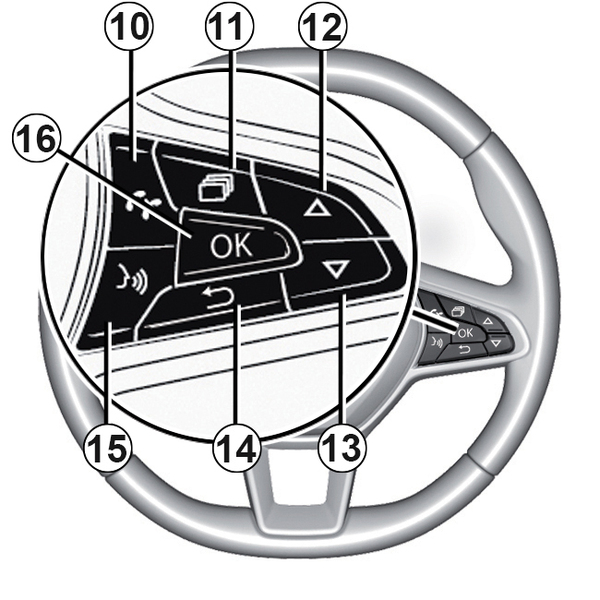
Introduction to the controls
AUDIO/MEDIA function | TELEPHONE function | ||
|---|---|---|---|
1 | Information zone: time, connectivity, telephone information, exterior temperature. | ||
2 | Worlds display zone (Vehicle, Radio, Media, Phone, Settings). | ||
3 | Display area showing the world/menu currently in use. | ||
4 and 5 |
| Scroll through the audio sources to select one of the following: FM→ DR→ AM→ USB→ Bluetooth®. | |
6 |
| Steering column control knob: Rotate:
| Steering column control knob: Rotate:
|
7 and 8 |
| Progressively adjust the volume of the audio source currently playing. | |
7 + 8 |
| Mute the audio source currently playing. | |

AUDIO/MEDIA function | TELEPHONE function | ||
|---|---|---|---|
9 |
| Change the mode for displaying and searching for radio stations FM - DR - AM:
With the audio media in USB/Bluetooth®:
| |
10 |
|
| |
11 |
|
| |
12 and 13 |
| Scroll through worlds/menus, lists and directories:
Media playing:
| |


AUDIO/MEDIA function | TELEPHONE function | ||
|---|---|---|---|
14 |
| To return to the previous level in the menus or cancel the current action, display the radio waveband selection screen, go up a level in the audio playlist directory (media). | |
15 |
|
| |
16 |
| Select/confirm a function or current playlist, select an item or confirm an action, store a radio station. | |

General description
World screens

You can access the various worlds 2 at any time by pressing and holding
 .
.
Press repeatedly on
to access the "Settings" world, then
 to confirm.
Worlds display area
Your system contains several worlds:
- « Vehicle » ;
- « Radio » ;
- "Media";
- « Phone » ;
- « Settings » ;
- ...
Note: the availability of Worlds depends on the equipment.
You can access the different worlds at any time using the
button on the steering wheel.
tip
Certain functions are only available while the vehicle is stationary.
Display screen

- A.
Status of the connection and sharing of data;
- B.
Information on the telephone network status.
- C.
Information on the telephone battery level.
- D.
Bluetooth®connection information.
- E.
Exterior temperature.
- F.
Current time.
- G.
Area for displaying available worlds.
- H.
Display area showing the world/menu currently in use.
Introduction
The audio system includes the following functions:
- FM and AM radio;
- terrestrial digital radio DR;
- management of USBBT Audio auxiliary audio sources;
- Bluetooth® hands-free phone system.
Radio function
The radio can be used to listen to radio stations on the following bands: FM (frequency modulation) and AM (amplitude modulation).
The DR system (digital terrestrial radio in DAB format, DAB+, T-DMB) improves sound reproduction and enables you to access the "Radio text" stored radio text information by scrolling the text to display:
- news updates;
- sports news;
- ...
warning
Your hands-free telephone system is only intended to facilitate communication by reducing the risk factors, but does not remove them completely. Always comply with the laws of the country in which you are travelling.
The RDS system displays the name of some stations or messages sent by the FM radio stations:
- general traffic information (TA);
- emergency messages.
Hands-free phone function
The hands-free system Bluetooth® allows you to use the following functions without having to handle your phone:
- pair up to six phones;
- make/receive/reject a call;
- transfer the telephone or SIM card phonebook contact list SIM (depending on the phone);
- view the history of calls made using the system (depending on the phone);
- call voicemail.
Auxiliary audio function
You can listen to your portable digital audio player directly through your vehicle's speakers. There are several ways to connect your portable audio player, depending on the type(s) of device you have:
- Bluetooth® connection;
- USB port.
For more information on the list of compatible devices, contact an authorised dealer.
Bluetooth® function
This function enables the audio system to recognise and control your portable digital audio player or mobile telephone via Bluetooth® pairing.
Operation
On and off
Briefly press on
 ,
,
 or
or
 to switch on your audio system.
The audio system can be used with the vehicle ignition off. It will operate for several minutes. Briefly press
to keep it on for a few more minutes.
Switch off the audio system by pressing and holding on
. The radio system display is shown in the illustration while switched off or in "Vehicle" mode with the sound muted.
Choosing the source
Scroll through the various audio sources by pressing
 repeatedly. When scrolling, the audio sources appear in the following order: FM→ DR→ AM→ USB→ Bluetooth®.
You can also select the radio band from the "Radio" world.
Press
to select the "Radio" world, then press
 to display the band selection menu among FM, AM or DR (terrestrial digital radio), then select the band using
 or
or
 , then
to confirm.
, then
to confirm.
You can also select the audio source from the "Media" world.
Press
, select the "Media" world using
or
, then
to confirm. Select the audio source.
When you connect a USB media source while the audio system is switched on then the source will automatically switch to the new media and start to play its content.
When you connect a Bluetooth® media source while the audio system is on, if the audio source playing was already Bluetooth® then the media content will switch and start to play automatically on the audio system.
Volume

Adjust the audio volume by pressing
or
on the steering wheel control.
Briefly press
to increase the volume by one notch.
Mute
Briefly press
to mute the sound.
Briefly press
,
or
again to resume playing the current audio source.