Video

<?xml version="1.0" standalone="yes"?>

" Video " menu

From the main menu, press "Applications" then the "Video" menu.

Select a connected input source.

If several sources are connected, select one of the input sources from the following list to access the videos:

Chapter

Photo

<?xml version="1.0" standalone="yes"?>

" Photo " menu

From the main menu, press "Applications" then the "Photo" tab.

Select a connected input source.

If several sources are connected, select one of the input sources from the following list to access the photos:

Chapter

Music

<?xml version="1.0" standalone="yes"?>

" Music " menu

From the main menu, press "Music" or from the other menus press the shortcut in zone A.

Chapter

Listen to the radio

<?xml version="1.0" standalone="yes"?>

" Radio " menu

From the main menu, press "Radio". If a radio station is already playing, you can press the shortcut in zone A from some pages in the "Navigation" or " Phone" menu.

Chapter

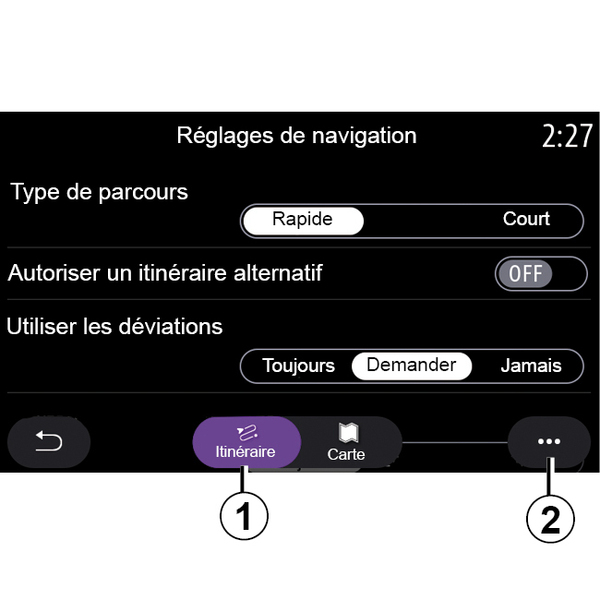
Navigation settings

<?xml version="1.0" standalone="yes"?>

" Settings " menu

From the home screen, press the card or, from the main menu, press "Navigation".

Chapter

Traffic

<?xml version="1.0" standalone="yes"?>

«  Traffic Map  »

(availability depends on equipment)

The "Traffic Map" function uses real-time online information.

Note: the services must be activated in order to display traffic information in real-time Activating services.

Chapter

Enter a destination

<?xml version="1.0" standalone="yes"?>

" Navigation " menu

From the home screen, press the card of press "Menu" then "Navigation".

Using voice recognition to enter an address

Chapter

Map

<?xml version="1.0" standalone="yes"?>

Map

Displaying the map

From the home screen, press "Menu" then "Navigation" to access the map.

You can also access the map from the "Navigation" widget.

Chapter