R-Link 2

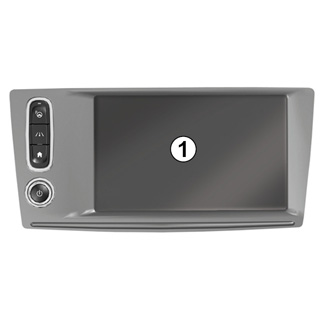

Multimedia screen 1
Navigating a menu
The multimedia screen 1 can be used to access the system functions:
- Touch the multimedia screen 1 to select a menu;
- swipe downwards with your finger to access further menu functions. A vertical scroll bar is displayed at the right of the screen to inform you of your position on the page;
- swipe from left to right to move from one page to another within the menus.
Gesture interaction
- Touch once: touch a part of the screen with your finger, then take your finger off the screen.
- Long press: touch a part of the screen for one second or longer.
- Pan (panoramic movement): press and hold the screen with one finger and swipe across the screen.
- Fast sweep (“swipe”): slide your finger quickly from one point to another.
- Drag and drop: touch a part of the screen for one second or longer while moving an object.
- Pinch/spread: bring your two fingers close or slide them apart on the screen.


Screen controls
Shortcut to a menu
1 Multimedia screen.
2 Go to the home pages.
3 Access the driving aids settings menu or the user settings menu.
4 Go to the display settings menu.
5 Go to the “Easy park assist” menu.
Switch on/off
Switch on the multimedia system screen
The multimedia system starts:
- when the vehicle is started;
- by pressing the multimedia panel On/Off control;
- when the screen is touched.
Switch off the multimedia system screen
The multimedia system switches off:
- by pressing the multimedia panel On/Off control;
- when the opening elements of your vehicle are locked.
For safety reasons, carry out these operations when the vehicle is stationary.
A video demonstrates how to use the multimedia system and the multimedia screen. With the vehicle at a standstill, press “Menu” on the home screen, then press the pop-up menu button and “About”.
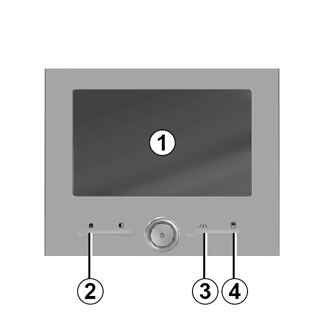
Screen controls
Shortcut to a menu
1 Multimedia screen.
2 Go to the home pages.
3 Go to the driving aids settings menu or go to the user settings menu.
4 Go to the display settings menu.

Central control
Navigating a menu
Use the joystick 8 to move around the different screens:
- Move the joystick 8 up or down to move around the different areas of the screen (upper bar, central zone, lower bar);
- turn the joystick 8 to search the list or zoom in/out map;
- press the joystick 8 to open the selected element;
- in the tabs menus, move the joystick 8 left or right to switch from one tab to another.
Confirm your selection
Press the joystick 8 to confirm a change.
Press button 6 to go back to the previous menu.
Press the button 7 to go back to the home page.
Videos show demonstrations on how to use:
- the multimedia screen;
- the Multi-Sense;
- driving aids.
With the vehicle at a standstill, press the relevant pop-up menu button, then “About”.

Scroll bar
The bar 9 shows the position of the current screen in the page. Swipe the multimedia screen up or down to scroll through the list and move around the page.
Pop-up menu
Available on most system menus, the pop-up menu 10 grants access to sub-menus (delete favourites, change current navigation itinerary, settings, etc.).


Introduction to the home pages
The home pages are the default screens for your multimedia system. Your system has four home pages, three of which can be personalised. Move from one page to another by sliding your finger (swiping) horizontally.
These home pages are made up of a certain number of widgets to functions such as the navigation, the radio, etc.
These widgets grant you direct access to the main screen for the function or, in certain cases, enable you to directly control them from one of the main screens (change the radio station, for example).
For a description of the home page, please refer to the “General description” section.
Note: You can change the configuration of the home page. Please refer to the “Add, manage widgets” section for further information.

Introduction to the main menu
To access the main menu, press “Menu” from the home page. The system is made up of six major sections, all of which can be accessed from the main menu:
- the “Navigation” function includes all the satellite guidance functions, road maps and traffic information;
- the “Multimedia” function enables the management of radio, audio and video playback;
- the “Phone” function is used to pair the system to one or more mobile phones and to use the hands-free mode;
- the “Apps” includes applications and the online R-Link Store store;
- the “Vehicle” function allows the management of certain equipment such as Multi-Sense, the driving aids, the reversing camera, Driving eco2 etc. ;
- the “System” function is used for adjusting various settings on the multimedia system, e.g. display, language, etc.

Functions unavailable
While driving, functions such as “Video”, “Apps”, access to the tutorial and some settings may be unavailable, according to country-specific regulations.
Unavailable functions can be identified by the icon 11.
To access unavailable functions, stop your vehicle.
Note: in some countries, regulation requires that the hand brake be applied in order to access the applications. For further information, please contact an Authorised Dealer of brand.

Connect your multimedia system
Activate your connected services by pressing button 12 to obtain the applications from the R-Link Store.
Note: the multimedia system will warn you if the connection is not possible. Move your vehicle to an area with network coverage then try again.

Presentation of the instructions provided with your multimedia system
You can view the user manual for your multimedia system from the multimedia screen by pressing the pop-up menu 13, and then “User manual”.