openR panorama screen

Widget and wallpaper settings
Press and hold the home screen for about 3 seconds to activate buttons A and B, allowing you to edit widgets and wallpapers.
For the central screen, multimedia, Apple CarPlay, and Android Auto are fixed widgets by default.
For the passenger screen, only multimedia and gallery widgets are available and set as defaults.
- A
- Widget settings
- B
- Wallpaper settings
- C
- Area to add widgets
- D
- Multimedia, Apple CarPlay, and Android Auto widgets are fixed widgets.
- E
- Return to the home screen after completing settings.
Home screen widget settingsA
After pressing and holding the home screen for about 3 seconds, select button A to set up home screen widgets.
Drag and drop widgets to the bottom right corner to set them on the home screen.
- 1
- App features
- 2
- Widgets
- 3
- Delete widget
- 4
- Widget folder
- 5
- You can scroll left/right through the widget area.
Adding widgets
Press and hold the home screen for about 3 seconds, then press A to edit widgets.
When you select App features 1, widgets 2 appears that you can add.
Drag and drop widget 2 to the bottom right area C to add it.
Press button E to complete widget editing.
If the sizes of the widgets are the same, you can add a new widget on top of the existing one to create a folder 4, with the total number of widgets displayed as a circle to the right of the folder. You can scroll up and down to use the folder.
Note: Widgets can only be added to the right of fixed widgets.
Deleting widgets
Press and hold the home screen for about 3 seconds, then press A to edit widgets.
Select the delete button 3 for the widget located in the bottom right corner to delete it.
Press button E to complete widget editing.
Note: To delete a folder, press and hold the folder and then press the delete button at the top right of the folder.
Note: To delete widgets included in a folder, proceed in the order of Home Screen - Folder - Delete Widget.
Widgets
The items that can be configured as widgets are as follows.
- Settings
- Color/Brightness
- Driver mode
- Smart Pilot
- Active Driver Assist
- Parking Assist
- Auto Parking
- Full Automatic Parking
- Around view
- Phone
- Recent calls
- Contacts
- Gallery
Wallpaper settingsB
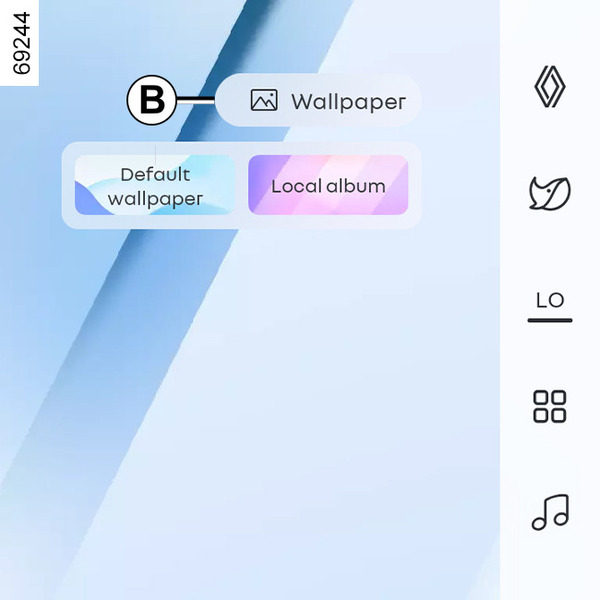
Press and hold the home screen for about 3 seconds, then press button B to set an image from the gallery as the wallpaper.
The central screen and passenger screen can have different wallpapers set separately.
By tapping the home screen button to hide the widget area, you can clearly view the wallpaper.
- Default wallpaper: Changes to the system's default wallpaper.
- Local album: Allows you to select images from the gallery to set as wallpaper.
Note: The central screen wallpaper cannot be changed while driving.
For more details, refer to the "Gallery"page. Gallery
Note: When setting a GIF file as wallpaper, only the first frame will be displayed.