openR panorama screen
You can access the video list by selecting the gallery widget on the passenger screen or
by navigating to [My apps]
 -[Gallery]
from the side menu on the home screen, and then selecting the connected input
source.
-[Gallery]
from the side menu on the home screen, and then selecting the connected input
source.
If multiple sources are connected, choose one from the following list to access the video.
- USB-1 (USB Port)
Note: Some file formats may not be compatible with the multimedia system.
Note: The USB flash drive must be formatted as FAT32 or NTFS, with a capacity of at least 8GB and a maximum of 64GB.
Video playback is only possible when the vehicle is stationary. While driving, it will switch back to the previous source.
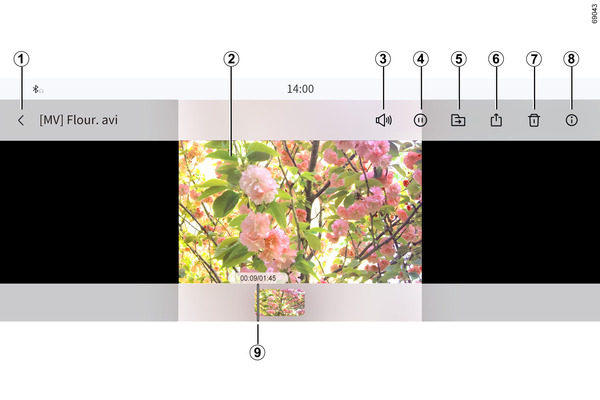
Video screen
You can set the screen mode to either small screen or full screen.
- 1
- Back
- 2
- Tap the screen to switch to full screen mode.
- 3
- Adjust the volume of the video. Tapping once will toggle mute mode.
- 4
- You can pause/play the video.
- 5
- Albums that can be moved are displayed. Select the album you want to move the video to, and it will be transferred to the chosen album.
- 6
- You can send the video to your phone via bluetooth.
- Note: Videos larger than 50MB cannot be sent.
- Note: Sending to iPhones is not possible.
- 7
- The video will be deleted.
- 8
- The size, resolution, and update time of the video are displayed.
- 9
- You can freely scroll through the video playback time using the scrollbar.
Note: Some features may only be available in full screen mode.
Note: When playing a video in full screen mode, the playback controls will automatically disappear after 10 seconds.
Note: If there are many files on the USB, recognition and execution may take longer. If there is an error, please reconnect and try again. If the USB is not functioning properly, refer to the external connection device precautions page.
Note: Compatible video formats include files with mp4, 3gp, avi, wmv, and mpg extensions. However, some files using unsupported codecs may not play.