Display Link - Navi Link
Your system has two types of auxiliary inputs:
- for connecting an external audio source (MP3 player, portable music player, USB key, phone, etc);
- with Bluetooth® (Bluetooth® audio player, Bluetooth® phone).
To find the input position, please refer to the section on "Introduction to the controls".
Operating and connection principles
Connect your portable digital audio player to the USB port. Once it is connected, the system automatically detects the auxiliary source.
Note: the USB drive used must be FAT32 or NTFS formatted and have a maximum capacity of 32 GB. Some formats may not be compatible with the system.
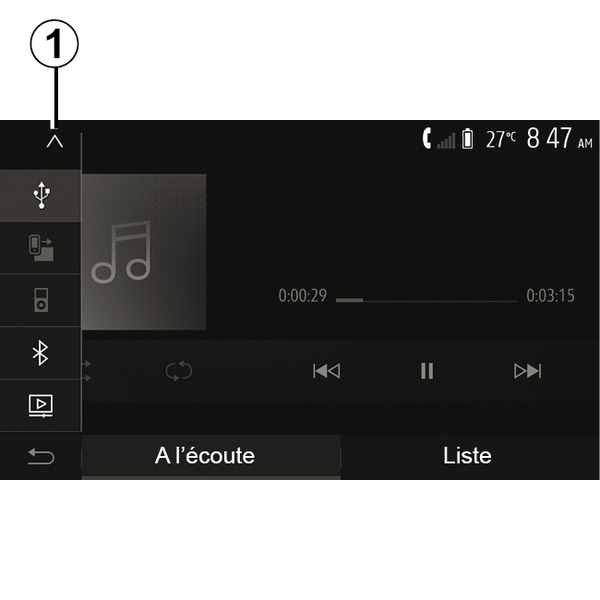
Selecting an auxiliary source
From the "Media" menu, select an input source by pressing 1.
A list of available input sources is displayed instantly:
- USB: USB key, MP3 player, telephone, etc.
- audio devices;
- BT: devicesBluetooth®;
- "Video": key USB(filesMP4, 3GP, AVI, MPG and MPEG).
Note: for your video files to be played using a USB flash drive, the following conditions must be met:
- video display format limited to a maximum definition of 800 x 480;
- frame rate limited to a maximum of 30 frames per second.
In navigation mode or when listening to the radio, select your auxiliary audio source by pressing "Home", then "Media".
The system starts playing the last audio track played.
warning
Only handle the portable audio player when traffic conditions permit.
Store the portable audio player while you are driving.
Risk of it being thrown forward in the event of sudden braking.

Audio formats
Only MP3, WMA and FLAC formats are recognised by the multimedia system.
Fast winding
Long press 2 to fast forward or rewind. Playback resumes when the button is released.
Repeat
This function enables you to repeat one or all tracks. Press 3 one or more times to repeat track(s).
Shuffle
This function lets you play all songs in shuffle mode. Press 4 to shuffle playback.
Auxiliary input: USB , Bluetooth® port
Connection: USB and portable digital audio player
Connect the jack of your portable digital audio player to the multimedia jack input socket
 .
.
For more information refer to the vehicle user manual in the "Multimedia equipment" section.
Once the USB socket of the portable digital audio player is connected, the "USB" menu is displayed. The model or menu of the portable digital audio player may be displayed.
Note: it may not be possible to connect some types of portable digital audio player.
Use
Select the portable digital audio player from the drop-down list 1, then press the desired playlist or audio track.
Once connected, on some models you will no longer be able to directly control your portable digital audio player. Use the buttons on the front panel of your multimedia system to select audio files.
Charging using the USB port
Once your portable digital audio player's USB connector is plugged into the system's USB socket, you can charge or maintain the battery during use.
Note: some devices do not recharge or maintain battery charge level when they are connected to the USB port on the multimedia system.
tip
The use of USB cables recommended by the phone manufacturer are advisable for correct functioning of the application.
Connection: Bluetooth®
Refer to the section on "Connecting/disconnecting Bluetooth® devices".
Once the Bluetooth® is connected, the "BT" menu is displayed.
Use
Select "BT" from the drop-down list 1, then press on the playback list or the desired audio track on the multimedia system screen.
All the audio tracks on your Bluetooth® device can be selected directly from the multimedia system screen.
Note: once connected, you can no longer directly control your portable digital audio player. You must use the keys on the system’s front panel.

Selecting a track
To select an audio track within a folder, press "List", then select a track A from this list.
To go back to the previous level in the folder hierarchy, press 5.
By default, albums are listed in alphabetical order.
Depending on the type of digital portable audio player, you can refine your selection by using folders or files.
Note: it is best to use a USB connection for easier music searches.