Display Link - Navi Link
Creating an entry

From the home screen, press "Nav", "Menu", "Destination" to access the destination menu. You have a number of methods available to enter a destination:
- "Address": please refer to the information on “Entering an address” in the section on “Entering a destination”.
- "Points of Interest": please refer to the paragraph "Selecting points of interest (POI)" in the section "Entering a destination".
- "History":please refer to the information on “Select a destination from previous destinations” in the section entitled “Entering a destination”.
- "Favourites": access destinations you have saved.
- "Search on the map": please refer to the paragraph "Selecting a destination on the map" in the section "Entering a destination".
- "Coordinates": please refer to the information on “Entering destination coordinates” in the section on “Entering a destination”.
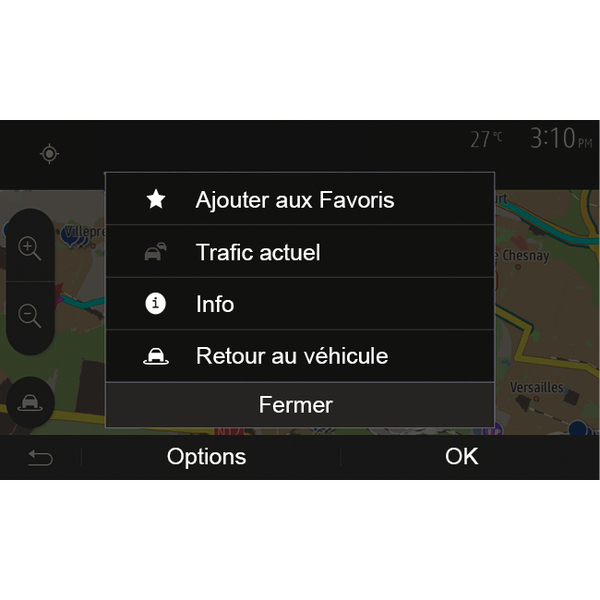
In all cases, once the address is confirmed, the system will locate it on the map. Press "Options" and then press "Add to Favourites" to add the destination to Favourites.
Before saving a favourite destination, you can change its name using the digital keypad.
Sorting the list

The result of saved favourites can be sorted by name, distance, or all shown on a map. Press Options.
Deleting the favourites
Tap the favourite you want to delete. Press "Options", "Delete Favourite" and confirm the deletion by pressing "Delete".
To delete all favourite destinations, press "Options" and then press "Delete all". Confirm this deletion by pressing "Delete all".
Searching the favourite
This function allows you to search the favourite destination in the list by name.
Press "Search" and enter the name of the favourite destination using the digital keypad.