openR panorama screen
Multifunctional capacitive touchscreen
You can execute various functions of the system through the touchscreen. Touch the screen to open menus, or swipe your finger left or right to navigate the display. A vertical scrollbar may appear on the screen in some cases.
How to use the touchscreen
- Single tap: Touch a part of the screen with your finger and then lift it off.
- Long press: Touch a part of the screen for more than 1 second.
- Quick swipe: Move your finger quickly from one point to another on the screen (swipe up/down).
- Drag and drop: To move an object, hold down a part of the screen for more than a second, move it to the desired location, and then release your finger.
- Zoom In/out: Touch the screen with two fingers and either pinch them together or spread them apart to zoom in or out.
Swipe functions in each location
From the home screen, you can swipe to launch the control center, notifications, app management, and more.
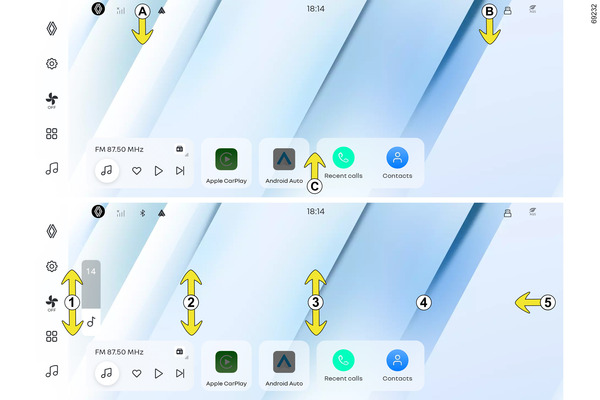
- Swipe down from the top left A: Control center Control center
- Swipe down from the top right B: Notification center
- Swipe up from the bottom C: App management My app
- Swipe sideways with three fingers: Move the screen you're on to the screen next to it.
Control center
The control center appears when you swipe down from the top left A of the touchscreen.
You can configure and control vehicle system settings, and swipe left or right to navigate between pages 1 and 2.
For detailed information about the control center, please refer to the "Control center" page. Control center
Notification center
The notification center appears when you swipe down from the top right B of the central screen. Users can access notifications through the notification center.
Managing running apps
You can manage running apps by swiping up from the bottom C of the touchscreen for about 3 seconds.
For detailed information about managing running apps, please refer to the "My Apps" page. My app
Gesture features
You can conveniently use various functions through gestures.
To check the gesture features, select [Vehicle Settings]
 -[Vehicle]-[Gesture Guide] in the
menu on the left side of the central screen.
-[Vehicle]-[Gesture Guide] in the
menu on the left side of the central screen.
- 1
- Temperature control: Swipe up and down with two fingers at point 1.
- 2
- Volume control: Swipe up and down with two fingers at point 2.
- 3
- Brightness control: Swipe up and down with three fingers at point 3.
- 4
- Editing widgets and wallpaper: Long press on the home screen to edit widgets and wallpaper. Add, manage widgets
- 5
- App menu and back: Swipe your finger in the direction of the arrow.
Note: Some gestures may behave differently depending on the screen.
Note: The vehicle image may vary based on the vehicle specifications.
App gestures
App gestures while using apps, you can share apps between the central screen and the passenger screen by swiping left or right with three fingers.
Apps that allow screen movement include multimedia, gallery and more.
warning
For your safety, perform this task with the vehicle stopped.