Display Link - Navi Link
Multimedia screen 1
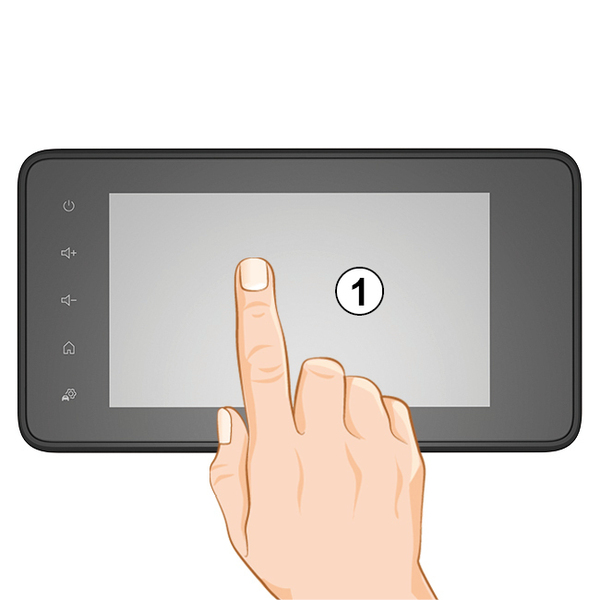
Briefly press:
- Item selection;
- Item execution (Media playing screen).
From the "Media", "Play" menu, pressing the next button switches to the next title.
Press and hold:
- saving an item (radio station for example).
From the "Radio", "Presets" menu, pressing and holding the preset number stores the radio station currently playing.
- Fast scroll.
When touching with long presses the list down buttons, scroll (per page) with acceleration.
- Fast forward/rewind (Media playing screen).
From the "Media", "Play" menu, pressing and holding the "Fast forward/rewind" button fast forwards/rewinds the track playing.
Back to previous menu " Welcome "

The system goes directly to the "Home" menu if you press and hold 2 or briefly press 3 wherever you are in the system.
Audio: using the steering column controls


Availability depends on the vehicle
Press button 5 to change the radio station search mode.
Rotate wheel 6 to change the station (movement A).
Press 4 to change the source
(USB, AM, FM, DAB and Bluetooth®).
Using an alphabetical keyboard

When entering a heading using an alphabetical keyboard, choose each letter using the keypad.
When choosing each letter, the system will remove the brightness of certain letters to help entering them.
Press 7 to delete the last character entered.
Press 8 to display the list of results. If necessary, press 8 again to return to the alphabetical keypad.
Press 9 to use numbers or symbols.
Press 10 to change the keyboard configuration.