Screen
tip
For further information on the heating level, please refer to your vehicle user manual.
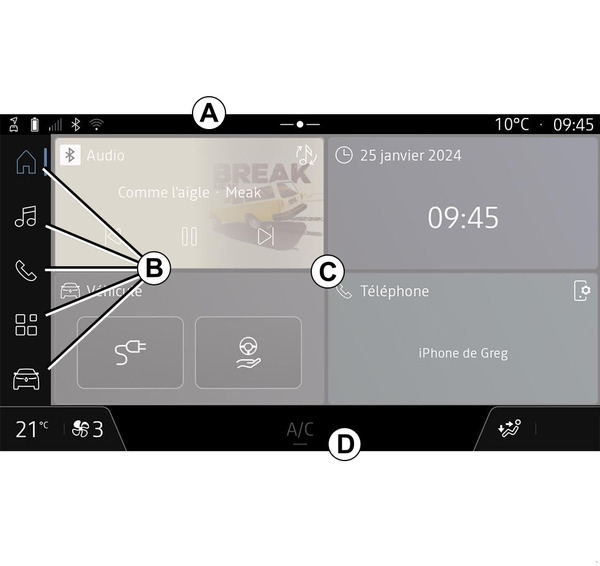
- A.
Access and status bar.
- B.
Access to different Worlds.
- C.
Display area for selected World.
- D.
Heating level bar indicator.

- 1.
Status of the connection and sharing of data;
- 2.
Phone battery charge level.
- 3.
Phone reception status.
- 4.
Bluetooth® of the activated multimedia system.
- 5.
Multimedia system WIFI status.
- 6.
Status of the wireless charger.
- 7.
Access to the notification centre.
- 8.
Exterior temperature.
- 9.
Time.
- 10.
Microphone status and control.
- 11.
Temperature setpoint indicator.
- 12.
Ventilation speed indicator.
- 13.
Heated steering wheel control.
- 14.
Heated driver seat control.
- 15.
Air conditioning control.
- 16.
Heated passenger seat control.
- 17.
Heated windscreen control.
- 18.
Passenger compartment air distribution indicator.
Worlds' Screens
Your system is made up of several Worlds B:
- « Audio »
 ;
; - "Phone"
 or "Smartphone replication"

 ;
; - « Applications »
 ;
; - « Vehicle »
 .
.
Note: the availability of Worlds depends on the equipment.
You can access the various Worlds at any time from the Worlds bar B which is visible and accessible at all times on the active screen.
"Home page" World

The "Home screen" world
 , which can be accessed using button 19, displays four customisable widgets.
"Audio" World
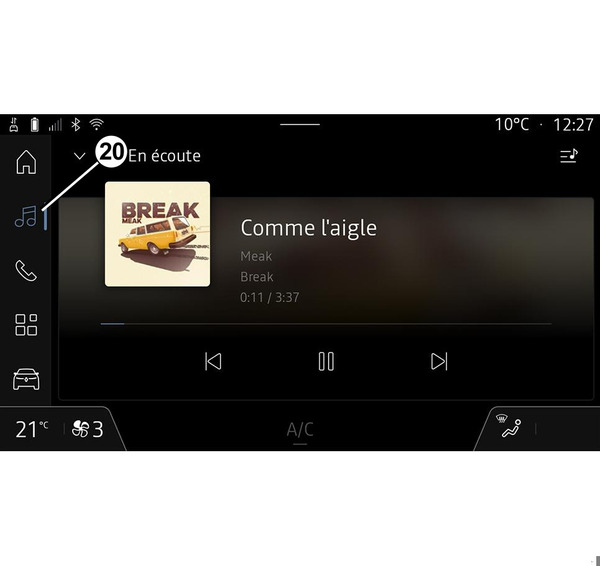
The "Audio" world
, which can accessed using button 20, provides access to the Radio and Music.
"Phone" World
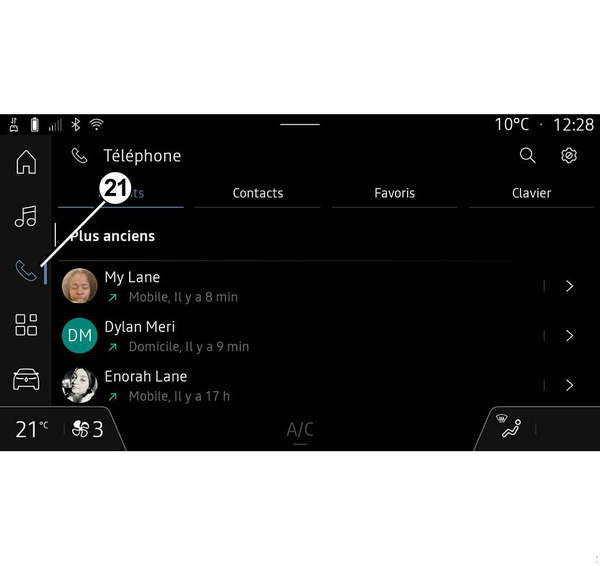
The "Phone" world
, which can be accessed using button 21, provides access to Calls, the Phonebook and other telephone functions connected to the multimedia system.
Note: the "Phone" world
icon may change while smartphone replication is in progress
.
"Applications" World

The "Applications"
word, which can be accessed using button 22, can be used to access applications from the multimedia system.
"Vehicle" World
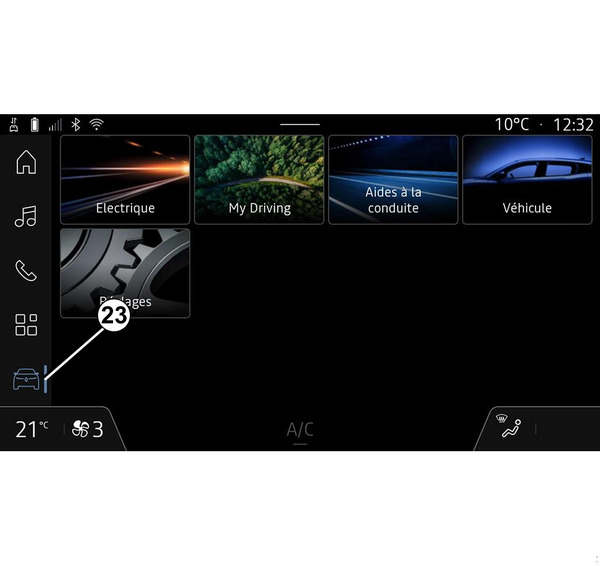
The "Vehicle" world
, which can be accessed using button 23, enables you to manage some vehicle equipment such as the driving aids, the camera, the My driving, etc. and to adjust some of the multimedia system settings such as the display, the language, etc.
Note: depending on the equipment level, only available functions that can be selected appear on the home screen.
Notification centre

The notification centre E, which can be accessed using button 7, or by quickly swiping the multimedia screen from zone A towards the centre of the screen, enables you to access the notifications, "Profile" and some functions. To exit the notification centre, press 7 or swipe up quickly from the bottom of the screen towards the centre of the screen.