openR 10.1" multimedia touchscreen
Multimedia screen
warning
For safety reasons, carry out these operations when the vehicle is stationary.
tip
Some settings have to be modified while the engine is running in order for them to be stored by the multimedia system.
Navigating a menu
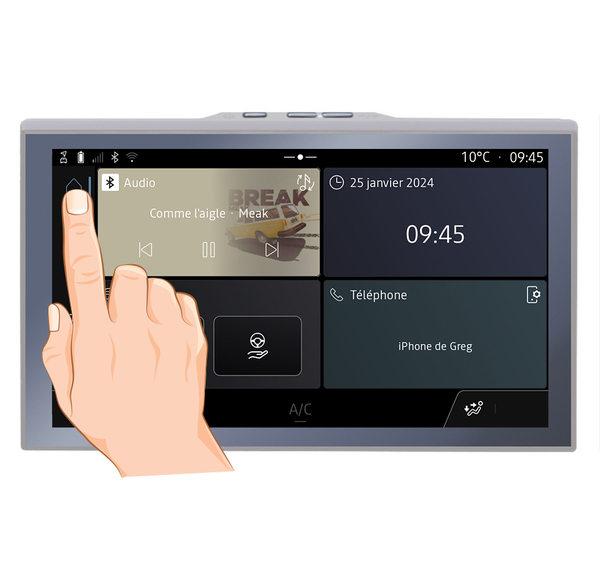
The multimedia screen can be used to access the system functions. Touch the multimedia screen to select one of the menus.
Gesture interaction
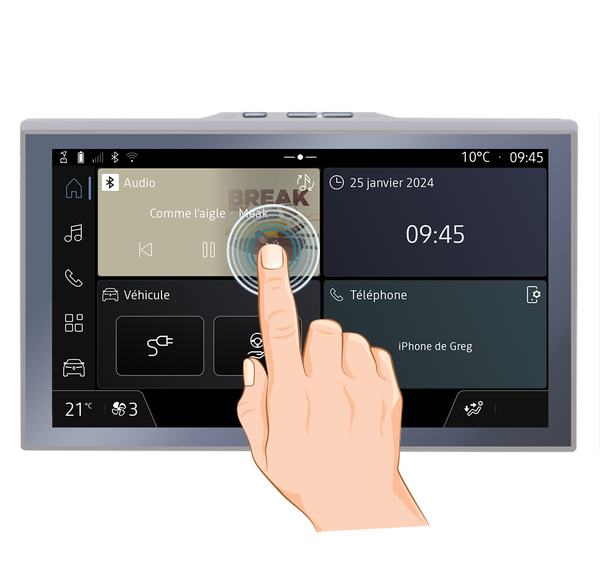
- Briefly press: touch a part of the screen with your finger then immediately take your finger off the screen.
- Press and hold: touch a part of the screen for at least 1.5 second.
- Zoom-in/Zoom-out: bring together two fingers or slide them apart on the screen.

- Swipe: slide your finger quickly:
- horizontally, from left to right or from right to left;
or
- vertically, from bottom to top or from top to bottom.
Introduction to the "World" bar

Your multimedia system includes a World bar A. The is made up of five Worlds, all of which can be accessed at any times on the multimedia display screen:
- "Home Page": enables you to display four customisable widgets;
- "Audio": used to access the radio and playback of audio files;
- "Phone"/"Replication":
- can be used to pair one or more phones to the system or to access calls, the phonebook and other available functions on the phone that is connected to the multimedia system;
- can be used to enable smartphone replication.
- "Applications": can be used to access the applications;
- "Vehicle": enables you to manage some vehicle equipment, such as the driving aids, the multi-view camera, My driving and to adjust various parameters on the multimedia system such as the display, the language, etc.
Introduction to the "World" pages
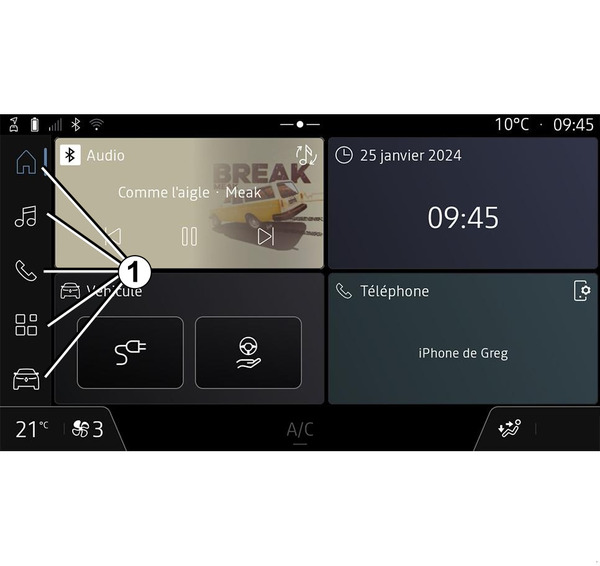
Move from one World to another by pressing directly on one of the World buttons 1.
The "Home page" includes widgets providing access to functions such as tyre pressure adjustment, the radio, etc.
These widgets grant you direct access to the main screen for the function or, in certain cases, enable you to directly control them from one of the main screens (change the radio station, for example).
For a description of the home page, please refer to the "General description" section General description.
Note: you can change the configuration of the home page. Please refer to the "Add and manage widgets" section for further information Add, manage widgets.
Notification centre
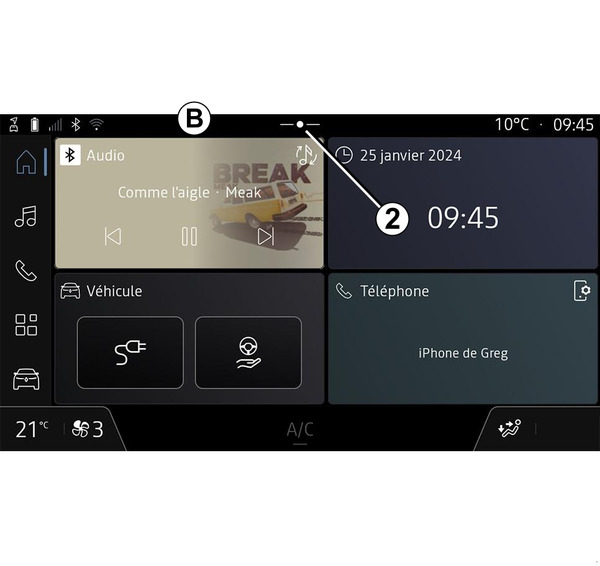
Can be accessed using button 2 or by quickly swiping the multimedia screen from area B towards the centre of the screen. The Notifications centre enables access to the notification history, for example:
- SMS ;
- « Tyre pressure » ;
- available updates;
- ...
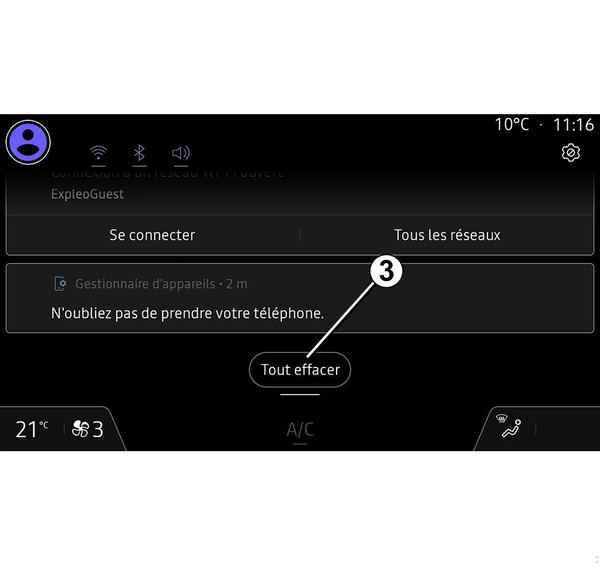
Select a notification to access it.
To delete a notification, perform a quick swipe on the screen.
To delete all notifications, press button 3.
You can also create and configure your user profile. For further information, please refer to the section on ''User settings" User settings.
For more information on notifications, please refer to the "Notifications" section Notifications.
Functions unavailable
While driving, functions such as access to the tutorial and some settings may be unavailable, according to country-specific regulation.
To access unavailable functions, stop your vehicle.
Note: in some countries, regulation requires that the parking brake be applied in order to access the applications. For further information, please contact an approved dealer.