openR panorama screen
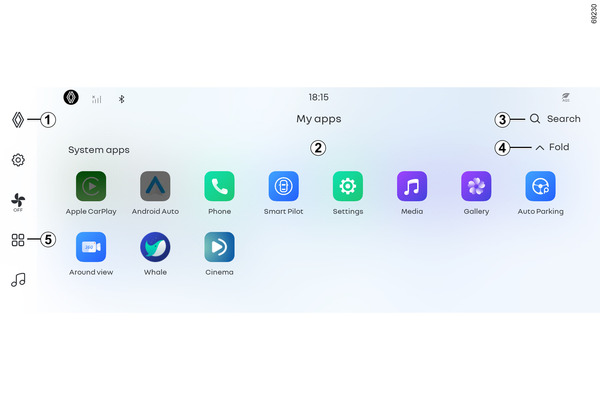
You can check system apps and apps installed by users by pressing [My apps]
 5 on the left menu of the central screen.
Video viewing and web browser functions that affect vehicle driving are only available when the vehicle is stopped. Detailed conditions may vary for each app.
If driving starts while using an app with driving restrictions, you will be moved to the previous page or a message will appear indicating that the app cannot be used.
Note: There is no restriction on use of the passenger screen as it is covered with a film so that it cannot be seen from the driver's seat.
When it can be used
If the vehicle's gear lever is in P or N position
If the speed is 0 km/h
When not available
- When the vehicle's gear lever is in the R or D position
- When the speed is 0 km/h or higher
My apps
The system apps that can be checked by pressing my apps are as follows.
- Apple CarPlay Android Auto™ , CarPlay™
- Android Auto Android Auto™ , CarPlay™
- Phone Phone call
- Smart Pilot Driving aids
- Settings User settings
- Media Music
- Gallery Gallery
- Auto parking assist
For more information, refer to the vehicle owner's manual.
- Around view
For more information, refer to the vehicle owner's manual.
- Whale Whale browser
Note: System apps cannot be deleted.
- 1
- Return to the home screen.
- 2
A multimedia display where you can scroll up and down to see all your apps.
You can edit or delete the location by long-pressing on the icon.
- You can organize apps by dragging and dropping.
- When the [-] delete button is activated, you can delete the app by pressing the button. If the app cannot be deleted, the Delete button will not be displayed.
- 3
- You can find it by searching for the app name.
- 4
- You can collapse the folder containing the app.
- 5
- Go to [My apps].
Manage running apps

To view the currently running apps on the multimedia system, swipe up from the bottom of the home screen Operating principles.
Swipe left and right across the screen to see more running apps.
- 6
- Swipe up on the running app to close it.
- 7
- You can manage running apps by swiping left/right on the touchscreen.
- 8
- Close all running apps to optimize system memory.
Closing apps
To close an app, press and hold the app you want to end and swipe in the direction of 6.
Optimizing system memory
Press button 8 to close all apps.
Note: Android Auto and Apple CarPlay will not be closed.
Note: Turning off the multimedia system will immediately stop all running apps.
Note: The number of apps may be limited based on the system's storage capacity.
Whale browser

Run it by selecting button A from the menu on the right side of the
passenger screen or selecting [My apps]
-[Whale]
from the side menu on the home screen.
Whale browser is a vehicle web browser platform that allows you to use various web services.
Note: Some functions of the web services provided through the vehicle web browser platform may not work depending on the compatibility environment.
Note: Whale browser can be used when the shift lever is in the P position (parking mode), and there is no restriction on use of the passenger display as it is covered with a film to prevent it from being seen from the driver's seat.
Settings 1
Delete internet usage history: Delete all Internet usage history, cookies, and cache data.
Default language setting: Select and set the default language of whale browser between korean and english.
Search 2
Press the search button to enter a search term using the keypad and display the search results using the naver search engine.
Enter a domain using the keypad to access the corresponding website.
Recent execution 3
Automatically records up to 3 most recently executed services.
Press the favicon to open the corresponding service page.
Press and hold the favicon to delete the service execution history.
Rename 4
Long press the favicon to change the name of the service.
Remove 5
Long press the favicon to delete the service from the home screen.
Open drawer menu12
Press button 12 to open the drawer menu with the browsing interface function. Press again to close.
- 6
Search
When you enter a search term using the keypad, the search results screen through the naver search engine is displayed.
When you enter a domain, you will be connected to the corresponding website.
- 7
Refresh
Refresh the currently running page.
- 8
- Go to the next page.
- 9
Use dark mode
Changes the whale browser system to dark mode. Select it again to turn off dark mode.
- 10
Favorites
Add the currently running service to your home screen as a favorite.
- 11
- Go to the previous page.
- 13
- Go to the whale browser home screen.
Cinema
(Service availability may vary depending on vehicle specifications.)

Run it by selecting [My apps]-
[Cinema]
from the side menu on the home screen.
Cinema is a vehicle OTT service platform that allows you to use various OTT services.
Note: When using OTT services through the cinema app, you need to subscribe to each OTT service.
Note: The availability of the cinema app may vary depending on vehicle specifications.
Note: Cinema can be used when the shift lever is in the P position (parking mode), and there is no restriction on use as the passenger display is covered with a film to prevent it from being seen from the driver's seat.
Menu A
When you press the menu button A, functions such as recommended content and live content are provided for the convenience of users.
- Discover
- TV Guide
- Search
- Watchlist
- Services
- Live TV
- Settings
Search B
When you press the search button B, you can enter the desired search term using the keypad.
The search results screen for viewable content is displayed.
Recommended content by OTT D
When you select the desired OTT service type through the service function of the menu, recommended content by the corresponding OTT is provided to the user.

Open drawer menu C
You can use the drawer menu C by selecting the display side.
The drawer menu provides easy access to the following functions of the cinema app:
- 1
- Go to the cinema home screen.
- 2
- Settings
- Clears the usage data of the cinema app.
- 3
- Refresh
- Refreshes the currently running page.
- 4
- Go to the next page.
- 5
- Go to the previous page