openR panorama screen
Phone call
Phone
Tap [My apps]
 -[Phone] from the menu on the left
side of the central screen or tap Phone on the widget.
-[Phone] from the menu on the left
side of the central screen or tap Phone on the widget.
You can make and receive phone calls through the smartphone's voice recognition features and steering wheel buttons.
Note: Your phone must be connected to the system to make calls.
For more information, see "Connecting, disconnecting your phone" on page Connecting,disconnecting a phone.
- Adjust the volume with the steering wheel remote control buttons or the volume buttons on the multimedia screen.
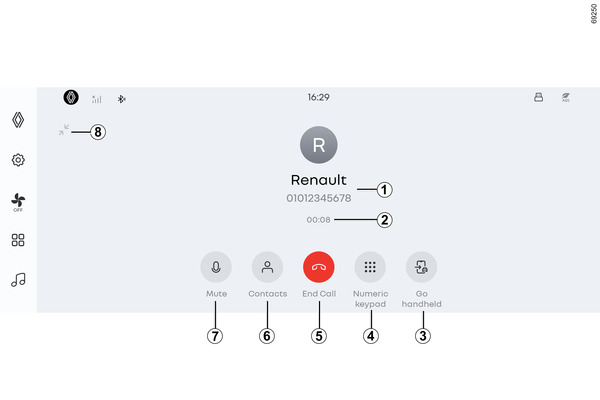
- End the call by pressing the End call button 5 or by pressing a button on the steering wheel. For more information, see steering wheel below.
Call screen
- 1
- Name and phone number
- 2
- Current call duration
- 3
- Switch the call to the mobile phone.
- 4
- The numeric keypad will appear
- 5
- End the call.
- 6
- The contacts appears.
- 7
- Mute the user's sound.
- 8
- Returns to the previous screen.
Note: For additional features, such as your phone's multiparty calling capabilities, see the documentation for your connected device.
Making a call
You can make a call using one of the following methods. Dial number
- Select a contact from contacts
- Select a call log from the call log history
- Enter a number in the dialer
Receiving and declining calls
When a call comes in, you can accept or decline the call from the multimedia screen.
- Red button: Decline the call.
- Green button: Accept the call.
Note: Some phones might lose connection with the system when switching calls.
warning
For your safety, perform this task while your vehicle is stopped.

Steering Wheel Phone Response
Declining a Call
Press button 9 on the steering wheel to decline a call.
Receiving a Call
Press button 10 on the steering wheel to receive a call.
Phonebook

Tap [My apps]
-[Phone]-[Contacts] from the left
menu of the central screen to view the list of contacts on your phone in the system.
Contacts screen
- 1
- Search for contacts in alphabetical order.
- 2
- Search for a contact by entering a name or number.
- 3
- Synchronize with your connected phone.
- 4
- Switch to privacy mode. Incoming and outgoing information is hidden.
- 5
- Contact list on the connected phone
When the mobile phone is connected with the hands-free feature activated, the contacts will automatically synchronize. Connecting,disconnecting a phone
Note: To see your phone's contacts through the system, you must allow data sharing on your phone Pairing, unpairing a phone.
The system does not manage phones with duaI SIMs. To use the contacts feature in the system, change the settings on your phone.
Searching contacts
You can search for contacts by entering a name or phone number.
- Select a letter from button 1. A list of contacts appears, starting with the letter you selected.
- Tap button 2. Enter the partial number or letter of the desired contact.
Manual contacts update
Press the sync button 3 to manually update the contacts from your mobile phone.
Phonebook selection
If you have two phones connected to your multimedia system at the same time, you can choose which phone's contact list is displayed.
Confidentiality
The contact list of each phone is not stored in memory by the hands-free phone system.
For confidentiality, the downloaded contact list can only be viewed when the respective mobile phone is connected.
warning
For your safety, perform this operation while the vehicle is stopped.
Call log
You can view all your call logs by tapping [My apps]
-[Phone]-[Calls] from the left
menu on the central screen.
The call logs are displayed from the most recent call to the oldest.

Call log mode
- 1
- Outgoing calls
- 2
- Names and contacts
- 3
- Mobile phone record synchronization
- 4
- Call dates
- 5
- Missed calls
- Missed calls are marked in red 5 with the name and contact 2.
Finding call logs
Slide up or down to find the call log.
Update call logs
Press the sync button 3 to update the recent call logs.
Making a call from call logs
Tap one of the contact names or numbers you want to call and the call will start automatically.
Dial number

To open the keypad used for entering numbers, tap [My apps]
-[Phone] from the left menu on the
central screen or press the [Phone] widget on the home screen.
When a call is in progress, a button to quickly access the [Phone] app will be activated in the top area A.
Dial mode
- 1
- Number input field
- 2
- Delete entered number
- 3
- Call history
- 4
- Digital keypad
- 5
- Call
Making a call by entering a number
Use the keypad 4 to enter the desired number and then press button 5 to make the call.
Making a call by searching contacts
Enter part of the number in the input field 1, and the system will recommend contacts with matching numbers.
Select the contact you wish to call and then press button 5 to make the call.
warning
For safety, perform these tasks while the vehicle is stationary.