Renault Koleos
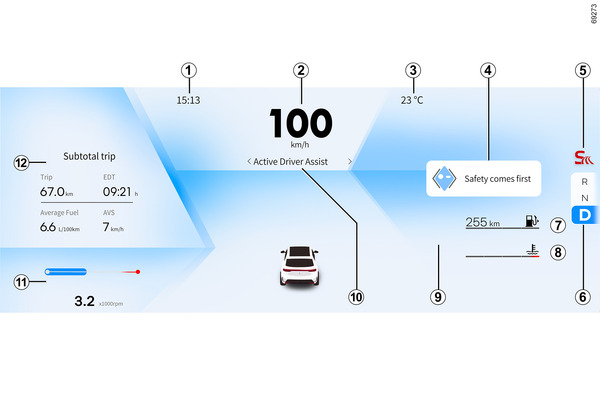
Clock 1: Displays GPS-based time information. From the left menu of
the center screen, select [Vehicle Settings]
 - [System] - [Time Format], and
then select between 24-hour or 12-hour format.
- [System] - [Time Format], and
then select between 24-hour or 12-hour format.
Speedometer 2
Exterior temperature indicator 3: The outside temperature is displayed between -40 and +85℃.
NOTE: When the exterior temperature is between -6°C and +3°C, an
 indicator appears next to the
temperature to signal a risk of ice on the road.
indicator appears next to the
temperature to signal a risk of ice on the road.
warning
Exterior temperature indicator
As ice formation is related to climatic exposure, local air humidity, and temperature, the external temperature alone is not sufficient to detect ice.
Depending on the vehicle, if the electrical supply is cut (battery disconnected, supply wiring broken, etc.), the clock will automatically revert to the correct time after a few minutes once the system is able to receive GPS information.
Multimedia information 4: Notification information, multimedia information, etc. are displayed.
Driving mode selected 5:DRIVE MODE
Current gear lever position 6
Fuel gauge and estimated range 7: When the fuel is low, the warning light lights up in yellow. Refuel immediately.
warning
When the fuel is low, the gauge will change from blue to red. Check the fuel level regularly and refill.
Be sure to stop the engine before refueling.
Coolant temperature indicator 8: Do not allow the temperature gauge to rise into the red zone.

Information, fault and warning messages 9: Information, fault and warning messages are displayed depending on the situation (depending on vehicle specifications).
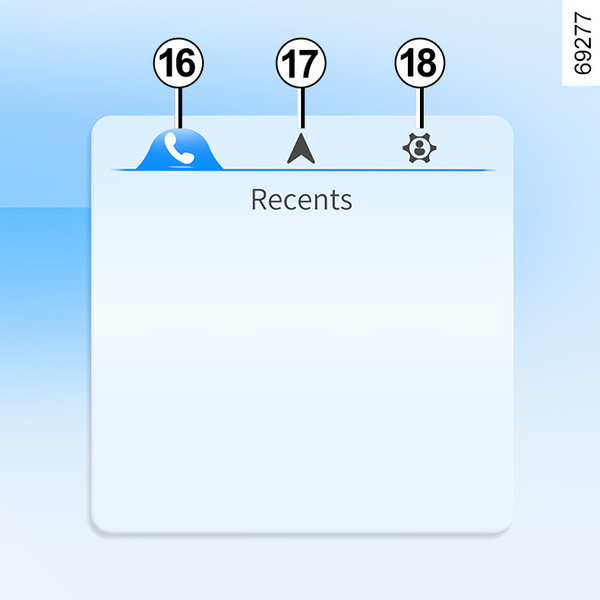
Pressing button 13 on the steering wheel causes a pop-up to appear or disappear on the right side of the instrument panel. The pop-up displays the recent calls 16, maps & navigation 17, customization or warnings 18 tabs (depending on the vehicle model) and you can move between the tabs by pressing button 14. Turning button 15 moves items up/down in the tabs or pressing (OK) selects them.
Depending on the vehicle model, the customization tab allows you to change the display style on the left side of the instrument panel and the warnings tab (if any warning messages are available) allows you to view warning messages.
Current selected driving assistance system 10
Rev counter 11: This is visible when the driving mode is sport or snow mode (DRIVE MODE),
Indicates engine revolutions per minute.
warning
Do not allow the engine tachometer to reach the red zone, as this may cause damage to the engine.

By briefly pressing button A on the lamp function operating lever behind the steering wheel, the following information can be checked on the instrument panel 12:
- Recent
driving information: You can reset the information by holding down button
A.
Trip computer
Energy flow indicator (for hybrid models Operation)
Door, tailgate, bonnet open indicator and seat belt fastening alarm
Tyre under-inflation warning light
■ Map in cluster
When the navigation function is in operation, touch the center screen with three fingers and swipe to the left to display navigation information on the instrument panel. If you do the same to the right, the navigation information disappears from the instrument panel.

■ Head-up display (HUD) B
Depending on the vehicle specifications, the Head-up display (HUD) B is installed on the instrument panel in front of the driver's seat. The display area of the HUD is located below and in front of the windshield, and is displayed as a virtual image. The driver can turn it on/off, adjust it up/down, or adjust the brightness, etc.
▶ Display Information
- Navigation or bluetooth connection call information 19 (not available in certain countries)
- Vehicle speed and direction information 20
- Driving assistance system 21 (not available in certain countries)
- Speed limit information 22
- Warning information 23
▶ Settings
From the left menu of the center screen, select [Vehicle Settings]
- [Driving Settings] - [Head-up
Display] in order.
On this screen, you can turn the HUD (Head-up display) on and off, and adjust its brightness and height. You can also activate the Snow Mode to display the HUD clearly when driving on snowy roads.
▶ Height adjustment
Select adjust on the Head-up display settings screen.
Press the up/down buttons on the right side of the steering wheel to adjust the display position. After adjustment, press the [Save] button on the screen to save the settings and exit.
▶ Brightness adjustment
Press the left/right buttons on the right side of the steering wheel to adjust the brightness. After adjustment, press the [Save] button on the screen to save the settings and exit.
warning
For safety reasons, carry out any adjustments while the vehicle is stationary.
The display of information may vary in visibility depending on the position of the seat, objects placed in front of the display, polarization of the lens, and weather conditions (rain, snow, or strong sunlight, etc.).
warning
The display of information may vary in visibility depending on the position of the seat, objects placed in front of the display, polarization of the lens, and weather conditions (rain, snow, or strong sunlight, etc.).
Do not place any objects around the display.
Do not use organic solvents, detergents, or abrasive cloths to clean the display.
Wipe with a soft cloth.
▶ Operating faults
If the problem persists, contact an approved dealer.
warning
- Polarizing filters or polarizing sunglasses can affect the visibility of the HUD image, making the image dark or unclear.
- In strong sunlight, parts of the image may disappear for a moment and then recover, which is normal.
- If the light is blocked by foreign matter on the HUD trim cover, the image display may be affected.
- If the front windshield glass needs to be replaced, use a front windshield glass designed for head-up display operation. Otherwise, duplicated images may appear on the front windshield glass.
- Rain, wind, or wet roads may affect the image, which is normal.