Display Link - Navi Link
Methods

There are two ways to access the smartphone interface:
- connect to the smartphone by plugging into the multimedia port USB
 ;
; - wireless smartphone connection (availability depends on the vehicle and/or finish level).
A settings menu is available for the wireless connection.
Note: for the correct operation of the application, the USB cable used must be:
- referenced by the telephone manufacturer;
- maximum length of 1.5 m.
"Wi-Fi Options"
To access the "Wi-Fi Options" menu, from the main menu press "Settings" then the "Devices" tab.
"Wi-Fi"
Select "ON" or "OFF" to activate or deactivate your vehicle's WIFI connection.
"Country frequency"
From this menu you can select the country in which you are using your vehicle's WIFI connection in order to adapt the connection frequency to the regulation in place in that country.
"Reset Wi-Fi PSK"
Use this option to reinitialise all previous connections to your vehicle, in order to connect a new device or to fix a connectivity problem.
Connect the smartphone using a USB connection

First use
After connecting your smartphone to your vehicle's USB port, the A screen should appear:
- "Media": enables you to use your smartphone for the following portable digital audio player functions:
- MTP (Media Transfer Protocole) ;
- portable digital audio player.
- "Tutorial": access tutorials on how to use smartphone interface applications;
- "Smartphone integration": enables you to access the smartphone interface via the adapted application:
- Android Auto™ ;
- CarPlay™.
Select the "Android Auto™, CarPlay™" option 1 to access the smartphone interface.
The smartphone interface application screen should appear on your multimedia system.
Connect the smartphone using a wireless connection
Availability depends on the vehicle and/or finish level.
First use
For this type of connection, you will need to carry out operations to pair your Bluetooth® telephone to the multimedia system:
- activate the Bluetooth® connection and the WIFI connection on your telephone and on your multimedia system;
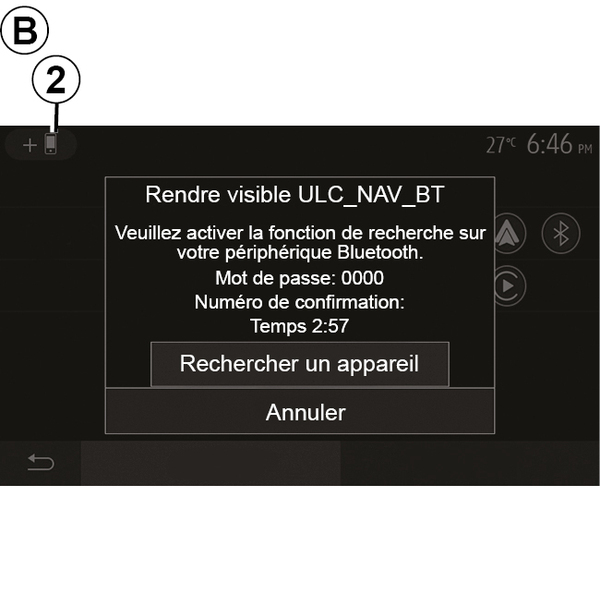
- from the main menu of your multimedia system, press "Settings", "Devices", Device Manager", "Add"2, "OK". You thereby make the system visible for the other Bluetooth® phones;
- the B screen appears displaying a password and the time left during which the system remains visible;
- from your telephone, display a list of available Bluetooth® devices;
- select the multimedia system from the available devices in the time given and use your telephone keypad to enter the password displayed on the system screen (depending on the telephone).
A message appears on your telephone screen to notify you that it is now paired with the multimedia system.

Once your smartphone is paired, the C screen should appear.
Select "Android Auto™, CarPlay™" 3 to access the smartphone interface.
The smartphone interface application screen should appear on your multimedia system.
Note: operation of the Android Auto™/CarPlay™ wireless (WIFI) interface depends on the technical specifications of your smartphone and current local legislation.